


A car’s specification sheet might list wireless Apple CarPlay, Android Auto and wireless phone charging together. They sound closely related, but they do different jobs: one connects your phone to the car’s screen, while the other charges its battery.
Understanding the difference helps you know what to expect when choosing a new SUV. Here’s how these features work, whether you can use them together, and what to check with your own phone before buying.

Wireless Connectivity and Wireless Charging Are Separate Features
Apple CarPlay and Android Auto let you access supported phone apps through the vehicle’s infotainment display. Depending on compatibility and availability, that includes navigation, music, calls and messaging.
With a wireless connection, you can use those functions without plugging your phone into the car. However, wireless CarPlay and Android Auto do not charge your phone.
A wireless charging pad has a different purpose. It transfers power to a compatible phone placed on it, but does not connect your maps or music to the dashboard.
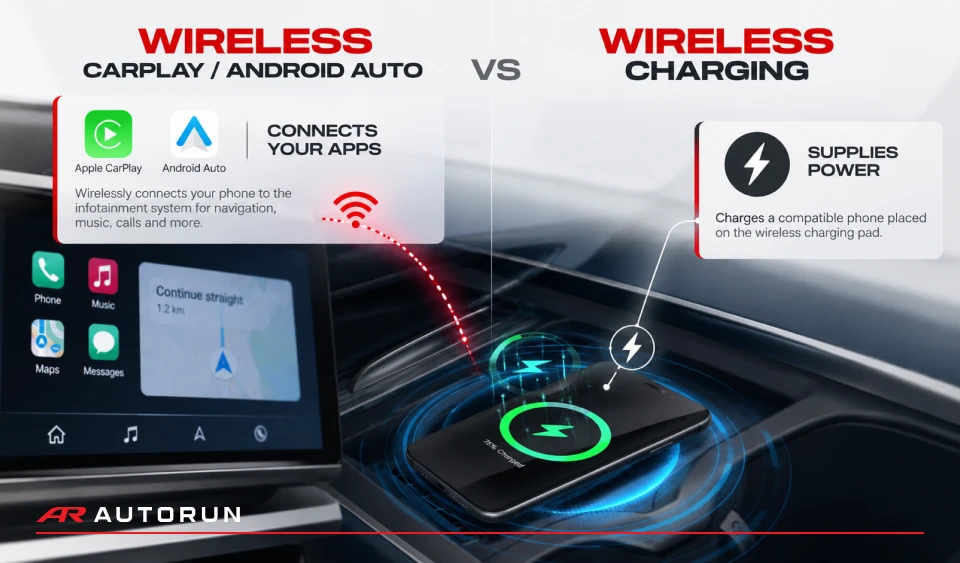
| Feature | What it does | What it does not do |
|---|---|---|
| Wireless Apple CarPlay or Android Auto | Connects a compatible phone to the infotainment system for supported apps | Charge the phone’s battery |
| Wireless phone charging | Charges a compatible phone placed on the charging pad | Display phone apps on the car’s screen |
| Wired Apple CarPlay or Android Auto | Connects a compatible phone through a supported USB data connection | Guarantee fast charging |
A vehicle can support one feature without offering the other. Check the exact model and trim rather than assuming “wireless connectivity” includes wireless charging.
Can You Use Both at the Same Time?
Yes, provided the vehicle and phone support both functions. You can connect wirelessly to the infotainment system, then place your phone on the charging pad.
For example, you could follow navigation on the dashboard while your phone charges in the centre console. The two functions operate separately: lifting the phone off the pad stops wireless charging, but does not itself end the wireless CarPlay or Android Auto connection.
The initial connection still needs to be set up. Follow the vehicle’s instructions and complete pairing while parked. Google’s wireless Android Auto setup guidance, for example, calls for Bluetooth pairing and recommends keeping Wi-Fi enabled during setup.
Will Your Phone Work With Both?
Check phone connectivity and charging compatibility separately.
A phone may support wireless CarPlay or Android Auto without supporting wireless charging. Likewise, a phone that charges on the vehicle’s pad may still need a cable to connect to that particular infotainment system.
Software, phone model, vehicle specification and regional service availability can all affect the experience. Bring your own phone to the showroom and ask to try the features you use regularly.
If you’re considering the JAECOO J5, for example, ask the team to demonstrate connectivity and charging on your preferred trim rather than relying on a general model description.
Why Might Wireless Charging Be Slow?
Placing a phone on the pad does not guarantee that it will charge at the pad’s advertised maximum power. Actual charging performance depends on the phone, charger compatibility, positioning and temperature.
Your case can also matter. Apple advises that thick, metal or battery cases may interfere with wireless charging, and recommends positioning the phone correctly on the charger. If the battery becomes too warm, charging may be limited until it cools.
For Dubai drivers, this is useful to remember when getting into a car that has been parked in the sun. If your phone displays a temperature or charging warning, let it cool and follow its manufacturer’s guidance.
Keep a suitable USB cable in the car as another charging option, particularly for longer journeys. Bear in mind that a cable does not override the phone’s temperature protections.
What to Check at the Showroom
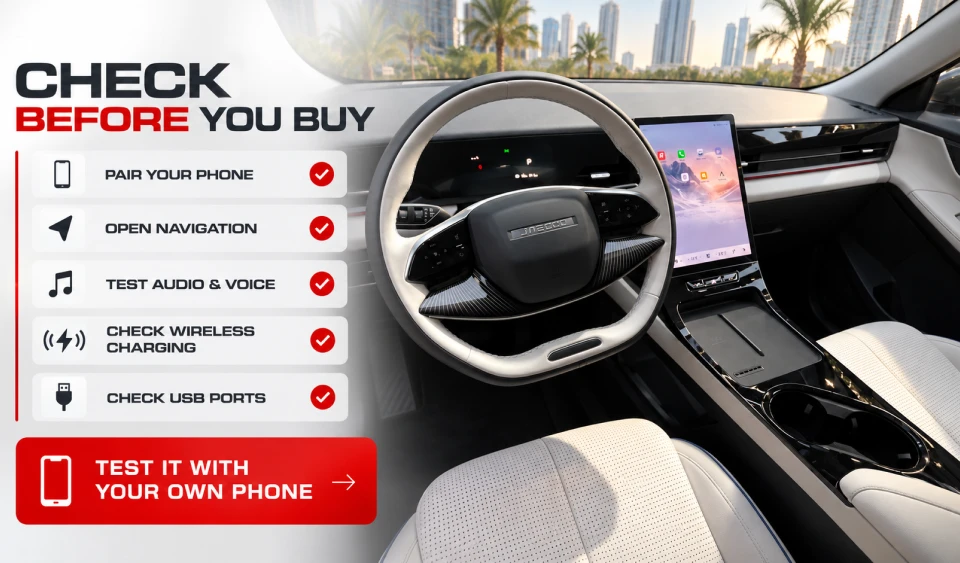
A short demonstration with your own phone can answer more than a feature list:
- Pair your phone: Confirm whether the connection is wired or wireless.
- Open your usual navigation app: Check that it works as expected on the car’s display.
- Try audio and voice controls: Find out how to adjust volume, change tracks and use supported commands.
- Check the charging pad: Confirm that your phone fits and shows it is charging with your usual case.
- Ask about USB ports: Identify which support phone connectivity and which are for charging only.
Once you have finished a demonstration in a shared vehicle, remove your phone pairing and any personal information saved during setup.
Try the Features You’ll Use Every Day
Wireless phone features are most useful when they work comfortably with your own device and routine. A clear navigation display, straightforward connection and convenient charging spot are details you can assess before choosing your SUV.
Visit one of the AUTORUN OMODA & JAECOO showrooms in Dubai to explore the available systems, or book an OMODA & JAECOO test drive and ask the team to help you check your phone’s compatibility before setting off.
